
Using your inbox
Your WazobiaMail inbox works in any web browser, on a computer, tablet or phone. Nothing needs to be installed or configured — open the address, sign in, and start sending mail.Sign in
- Open https://webmail.wazobiamail.com in your browser.
- Enter your email address (for example
ada@yourcompany.com). - Enter your mailbox password, then press Sign in.
The inbox at a glance
After signing in you see the Inbox on the left, the list of messages in the middle, and the selected message on the right. The app also has a light theme and a dark theme.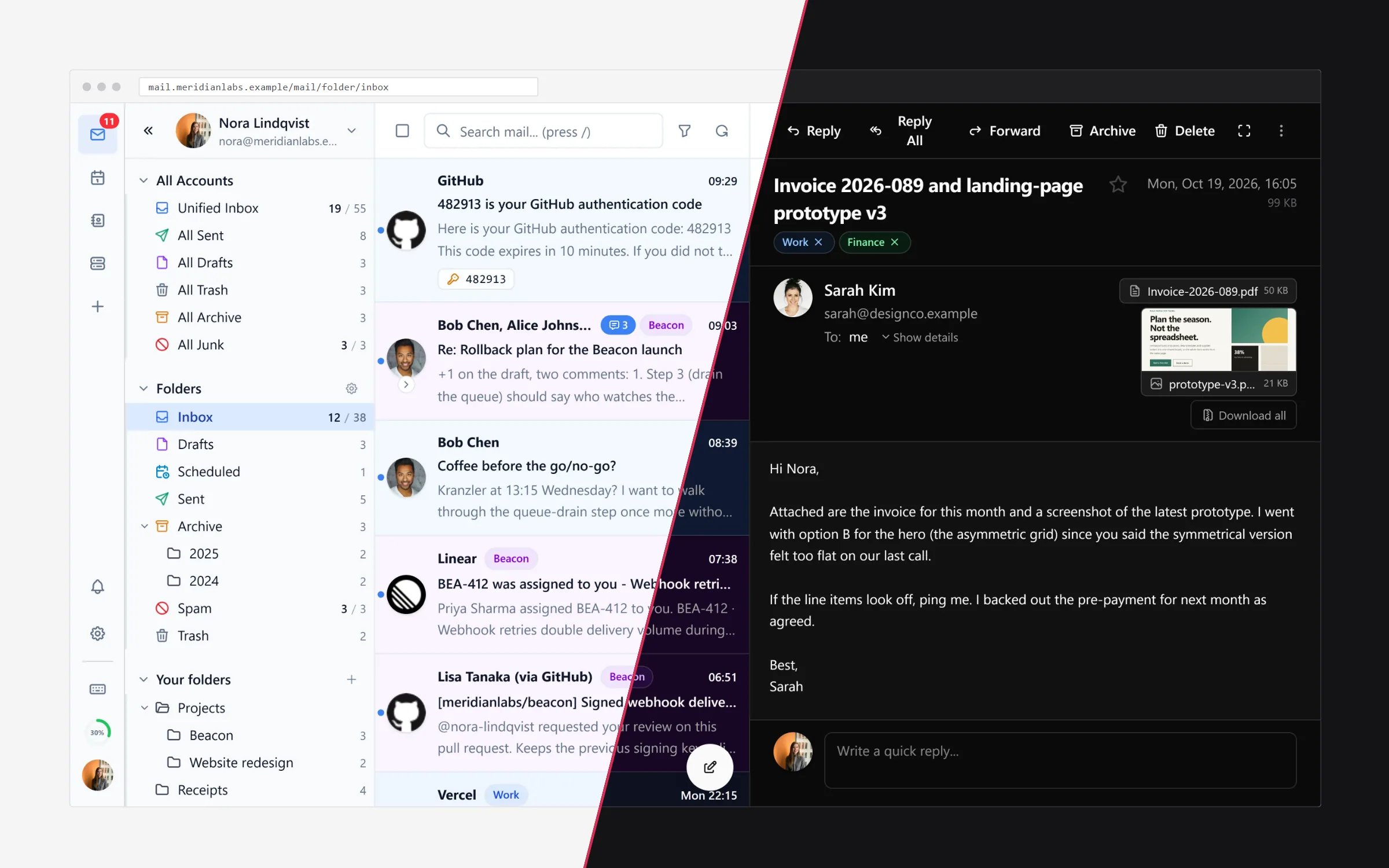
Read your mail
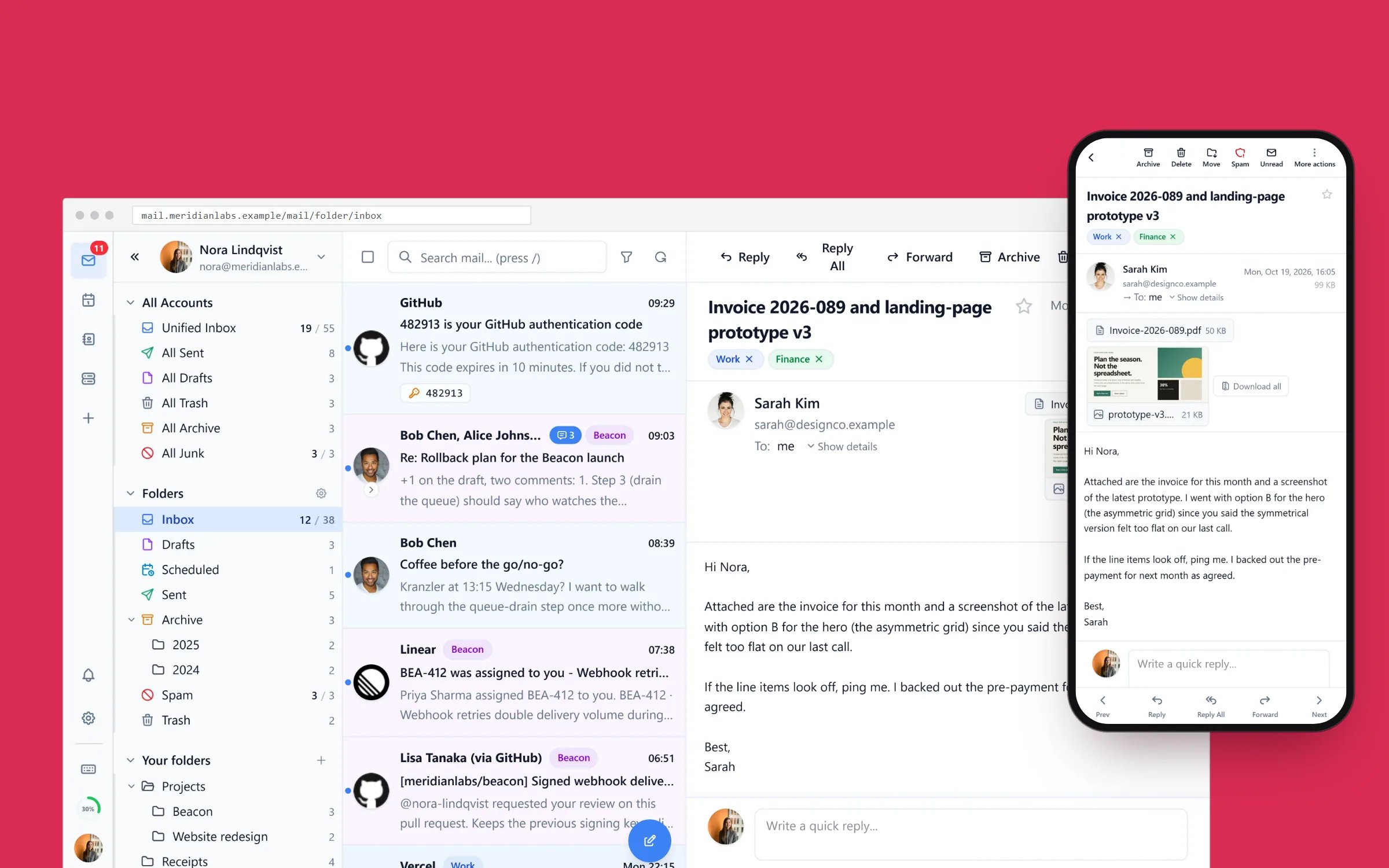
- Click (or tap) a message in the list to open it in the reading pane.
- Messages you have not read yet appear bold, with a dot next to them.
- Attachments appear at the top of the message — click a file to view it, or Download all to save everything.
- While reading you can choose:
- Reply — answer only to the sender.
- Reply All — answer to everyone on the message.
- Forward — send the message (and its attachments) to someone else.
- Archive — keep the message but move it out of the inbox.
- Delete — move the message to Trash.
Send your first message
- Select the compose (pencil) button.
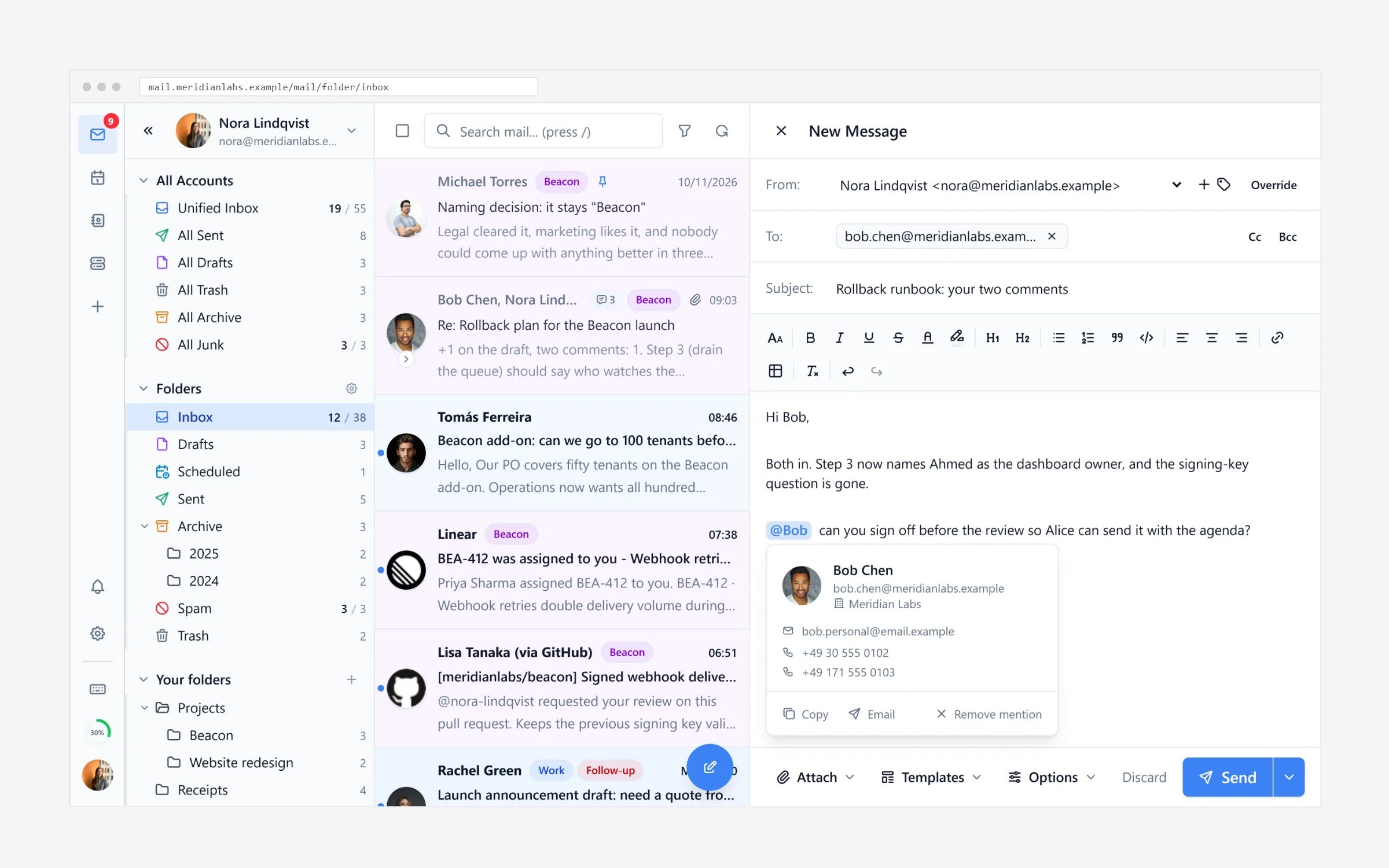
- Start typing recipients in To — the app suggests addresses from your contacts as you type. Use Cc to copy someone visibly and Bcc to copy someone without the other recipients seeing it.
- Type a Subject so the recipient knows what the message is about.
- Write your message. You can change the font, add headings and lists, insert links, and make text bold or italic.
- Select Attach to add files from your device, and Send when ready.
Where messages live
Folders are listed on the left:
If a good message lands in Spam by mistake, drag it back to the Inbox (or open
it and choose Not spam) — the filter learns from this.
Find a message
Type in the Search bar at the top of the list — it searches senders, subject lines and message contents. Press the / key on a keyboard to jump straight into search. There is also a filter button next to the search bar to narrow the list to unread, attachments, starred and similar. Your own folders can be created too — right-click the folder list (or use its settings button) to add folders such as “Projects” or “Receipts” and drag messages into them.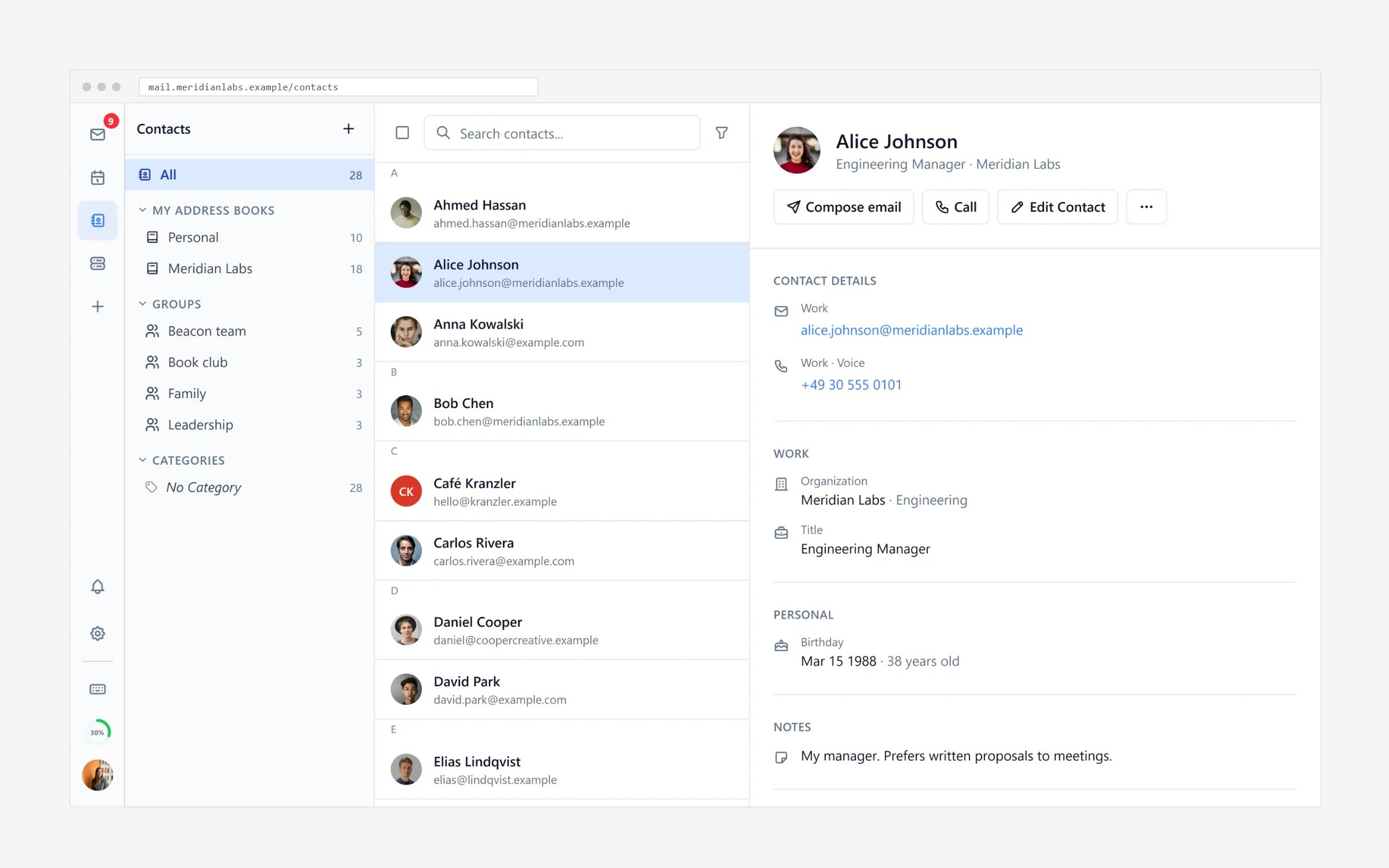
What about the calendar?
The same sign-in also gives you the Calendar (the calendar icon in the top-left rail) for appointments and events, with invitations arriving by email.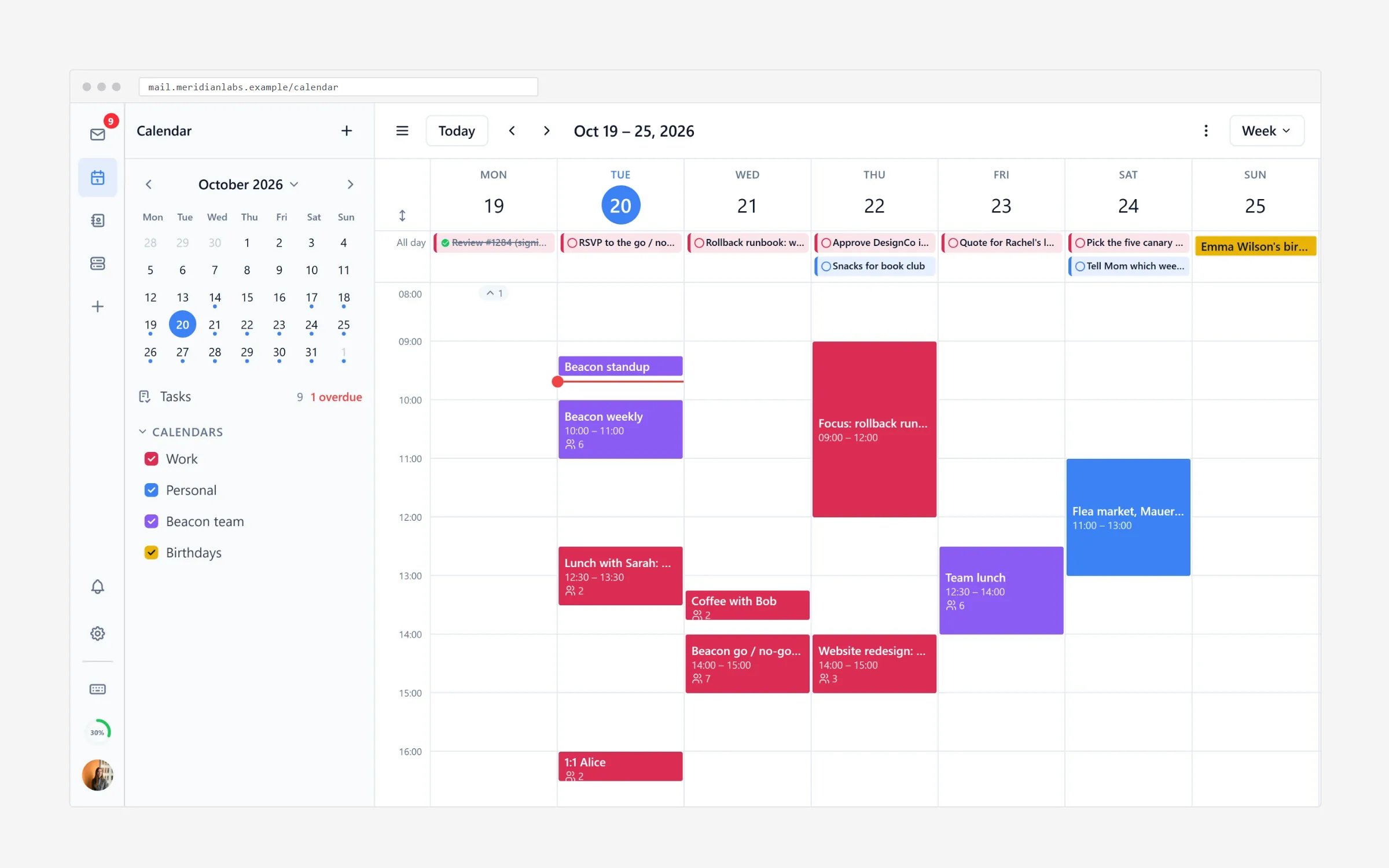
Using a different email app instead
Prefer Gmail, Thunderbird, Outlook or Apple Mail for your mail? Your WazobiaMail address works there too. See Connect email apps for step-by-step settings.Connect email apps
Use your address in Gmail, Thunderbird, Outlook and Apple Mail.
Mail rules
Let the inbox file and star mail for you automatically.
Create host mailboxes
Set up addresses like you@yourcompany.com and support@yourcompany.com.