
Calendar & tasks
The WazobiaMail calendar sits side by side with your mail: invitations that arrive by email turn into events, replies come back to your inbox, and your day is planned in the same sign-in. Open it from the calendar icon at the top of the left rail.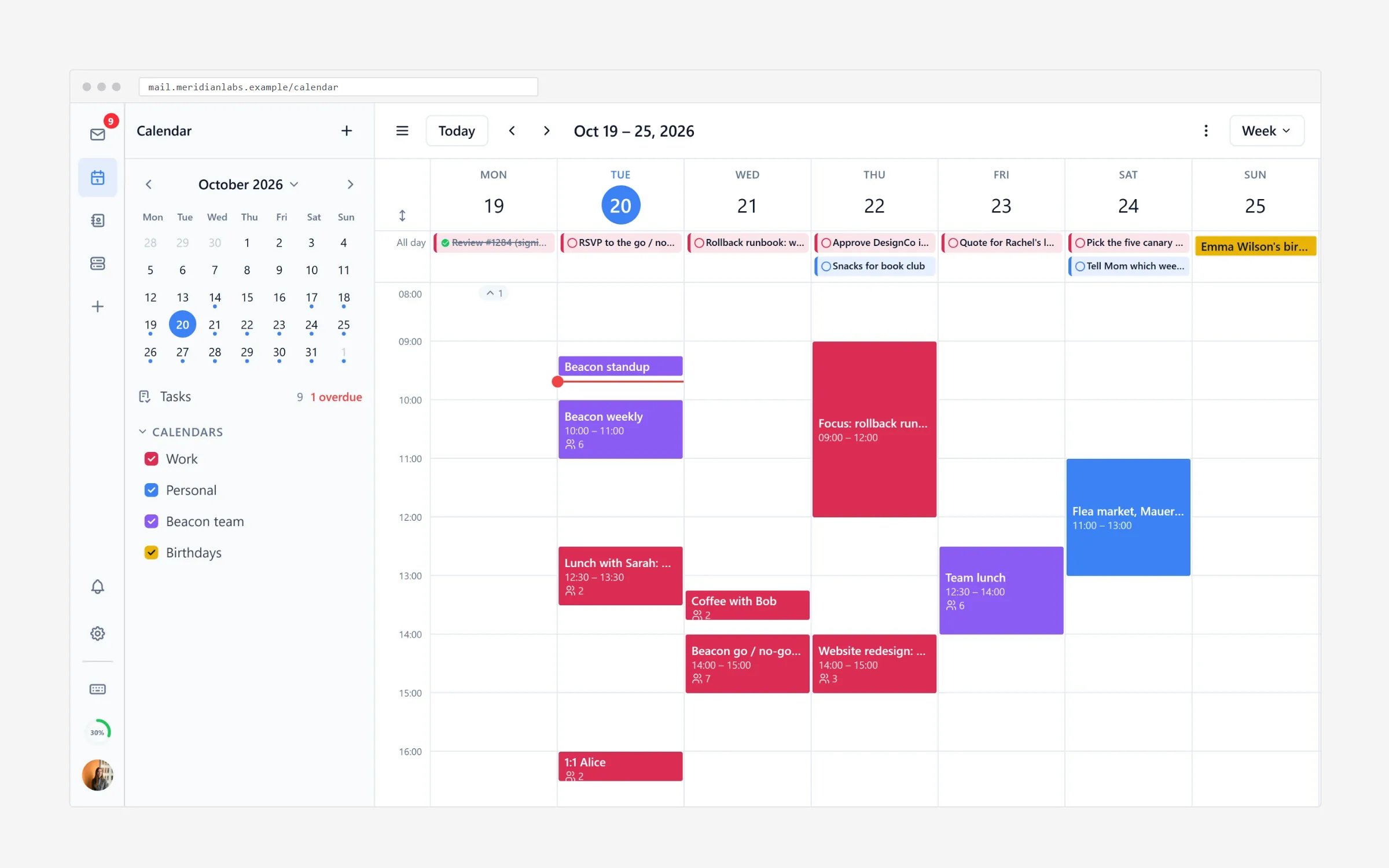
Switch views
At the top of the calendar pick Day, Week, Month or Agenda:- Day and Week show your hours per day; set working hours and first day of the week in the calendar settings (the gear next to the view buttons).
- Month gives the overview — a mini-calendar in the sidebar jumps between months.
- Agenda is a simple list of what is coming up — the best view on a busy Monday morning.
Create an event
- Click an empty spot on the day (or select New event).
- Enter the title, time and guest addresses — guests get something in their inbox: an invitation they accept, decline or propose another time.
- Save. Their replies come back as ordinary email, so nothing gets lost.
Invitations from other people
An email with an invitation shows buttons right on the banner: Accept, Decline or Tentative. Accepting places the event in your calendar, and the organiser gets your reply — the whole loop happens without leaving your inbox.Bring in a calendar you follow elsewhere
The calendar supports both types of import:- Import a file — upload an
.icsfile (from another app, a course, a timetable) and choose which calendar it joins. - Subscribe to a URL — add a webcal (or https
.ics) link and your calendar stays up to date on its own: holidays, sports fixtures, school terms. Subscribed calendars can be reloaded or removed from the sidebar.
Tasks
Tasks are the to-do side of the same app — tick things off without a separate tool:- In the sidebar choose Tasks (or pick the Tasks kind when creating).
- Add items with a due date; overdue ones stand out in the agenda.
- Tick them done, or reschedule by dragging onto another day.
See it on your phone
The calendar is part of the webmail — the same https://webmail.wazobiamail.com address on a phone shows a touch-friendly version. It can also be installed as an app-style home-screen icon; and if you prefer a native phone calendar, most phones accept a CalDAV account that points at your WazobiaMail calendar — ask support for the exact server address.Contacts
Save people, groups and details for invitations and suggestions.
Using your inbox
Everyday reading and sending on the web.