
Contacts
The Contacts app keeps all the people you write to. It is the book the composer reads from when you type a name, and it is the fastest way to reach the right address on the right occasion. Open it from the contacts (book) icon at the top of the left rail.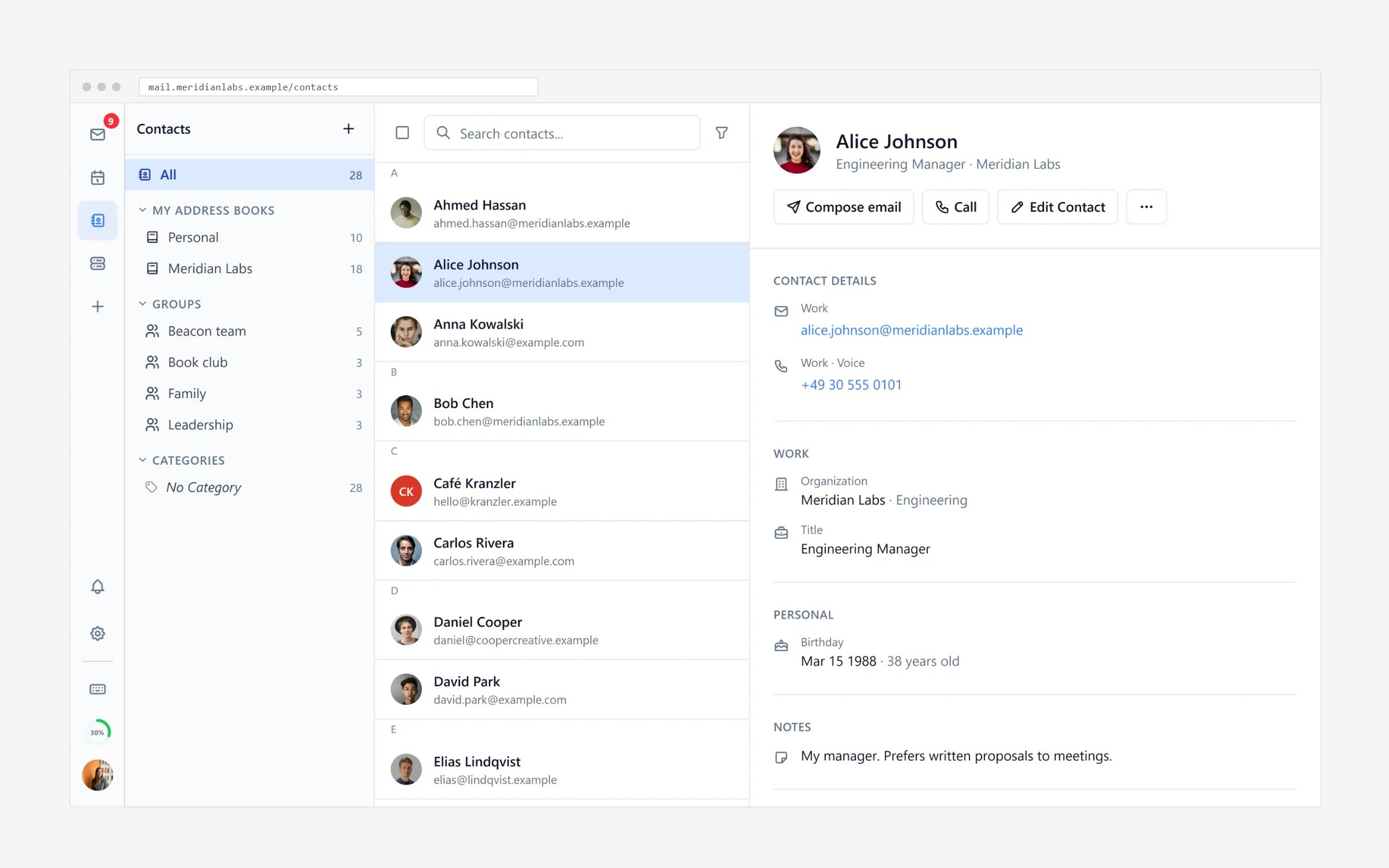
Add a contact
- Open Contacts and select New contact.
- Fill in at least the name and email address; phone numbers, company, title and notes fields are there when you need them.
- Save. From now on the address appears while you compose — start typing the name in To and select the suggestion.
Suggestions while composing also include a directory your administrator may
have connected — people inside your organisation appear even if nobody saved
them by hand.
Groups
Make a group (list) for people you write to together — the team, the class, the project:- In Contacts, choose New group.
- Give it a name and pick the members.
- When composing, type the group name in the To field; every member is expanded or kept in one line, your choice at send time.
Import from another mailbox
Moving over from Gmail, Outlook or old webmail? Most apps export contacts as a CSV or vCard file:- In the other app, export the contacts (often under “Export” or “Download a copy”).
- In Contacts choose Import and select the file.
- Check the preview — names, addresses and numbers are lined up with the right fields — and confirm. Duplicates can be merged afterwards.
Keep your data tidy
- Edit a card any time — the changes apply everywhere suggestions appear.
- Merge duplicates when two cards belong to one person.
- Export the whole book (CSV/vCard) to keep a backup or move somewhere else.
- Print a group card for a wall or a wallet.
- Delete with a confirm — deleted cards can be re-imported but not restored by support.
From card to email
Every contact card has a mail button — open it and the composer starts with that address already filled in. Details such as phone numbers and notes stay on the card, so you never need the source message again.Calendar & tasks
Invite your contacts to events.
Connect email apps
Use your address in Gmail, Thunderbird and Outlook.