
Mail rules
Mail rules tidy up your inbox automatically. A rule is a simple sentence: when a message fits a condition, do something with it — for example “when the subject contains ‘receipt’, file it in the Receipts folder”. Rules run on new mail as it arrives, so mail lands in the right place without you moving it.Open the rules screen
- Open WazobiaMail at https://webmail.wazobiamail.com.
- Select the Settings gear in the top-left rail (or open your profile and choose Settings).
- Choose Filters in the settings list.
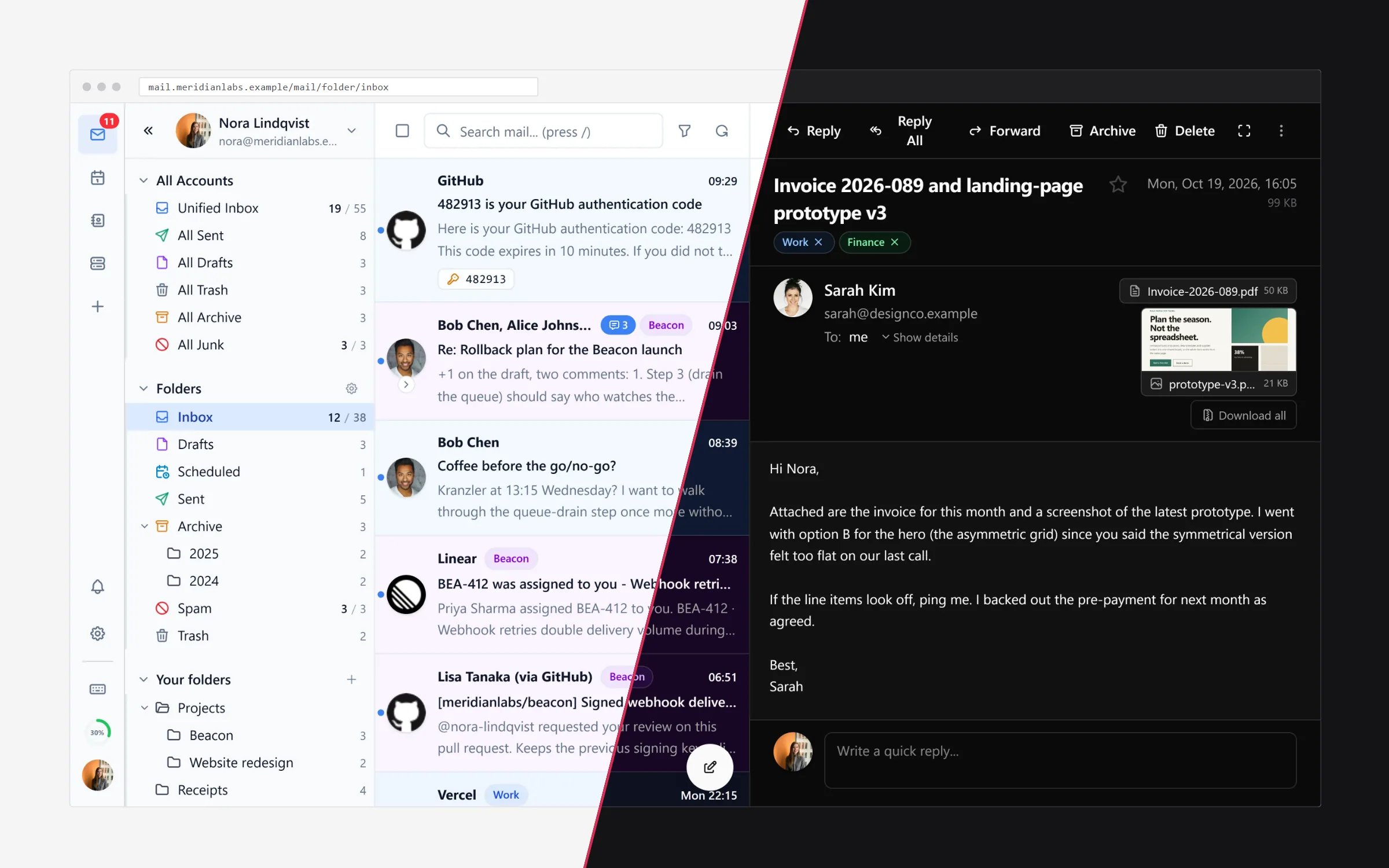
Create your first rule
- On the Filters screen select New rule (or Add rule).
- Give the rule a name you will recognise, such as Receipts.
- Choose a condition — for example:
- Sender is a specific address
- Subject contains certain words
- the message has an attachment
- the message is sent to a particular address of yours
- Combine rows with Any (matches easier) or All (matches stricter).
- Choose an action — typically Move to folder, Mark as read, Star, Forward to an address, or a combination.
- Save the rule. From now on, matching mail is handled automatically.
Rules run in order
Rules are applied top to bottom, in the order they are listed. Rearrange them by dragging on the Filters screen — for example, an “archive newsletters” heading rule must sit above (run before) a broader “mark all as read” rule that would otherwise match the same mail first.Make a rule from a message
The fastest way is from the message itself: right-click (or open the ⋮ menu on) a message in the list and choose Create rule or a quick rule such as “always file mail from this sender”. WazobiaMail pre-fills the condition from that message — check it, pick the folder, and save.Out of office uses the same engine
A rule-like special case is the vacation responder (auto-reply). If the Filters screen shows an orange “vacation is active” banner, see Out of office — that banner links straight to the vacation settings, where it can be turned off quickly.For advanced users: edit the raw filter script
Under the hood, rules use the standard Sieve language. Power users can open the raw editor from the same Filters screen and write Sieve commands directly — useful for conditions the basic screen cannot express, such as header checks or date-window tests. If a raw script was created by an administrator or imported, it is read-only unless editing is permitted.If a rule surprises you
Check two usual suspects on the Filters screen:- Order — an earlier rule caught the message first.
- The “stop further rules” action in that rule — messages that matched do not fall through to later rules.
Using your inbox
Everyday reading and sending on the web.
Out of office
Scheduled auto-replies while you are away.